Free Image Compressor
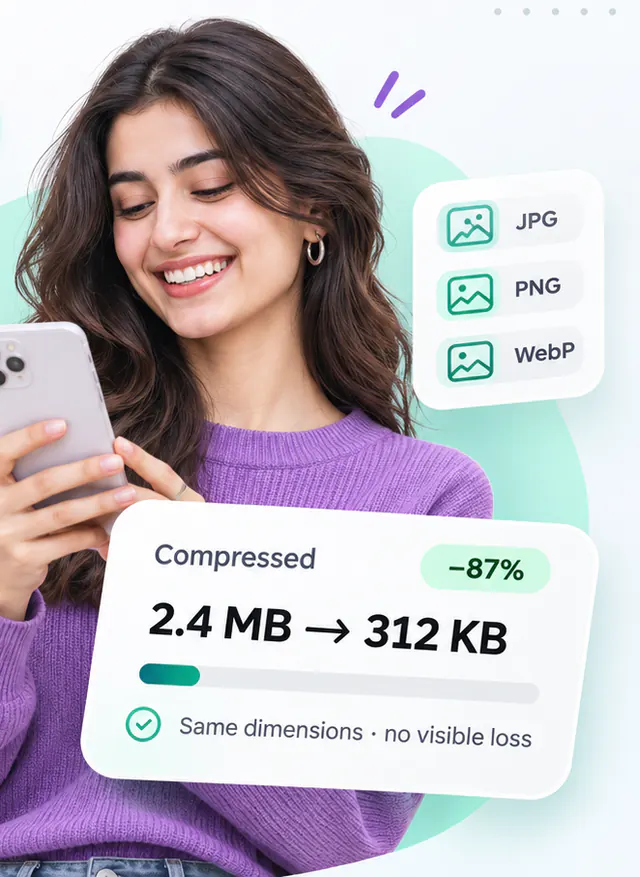
Shrink PNG, JPG and WebP images with a live quality preview and an optional target size.
- Runs in your browser
- No upload step
- Free, no watermark
Quick answer
Compress an image for free in your browser: drop a PNG, JPG or WebP file, pick a quality level or a target file size, compare the result with the original and download. Files never leave your device, no account is needed and the exact before-and-after sizes are shown.
About this tool
Drop an image, pick a quality level and compare the result against the original before you download. The compressor keeps the file in its current format by default, so a PNG stays a PNG and a JPG stays a JPG, and it reports the exact byte saving instead of a marketing estimate.
Need to hit a limit such as “under 200 KB” for a form upload? Enter a target size and the tool runs a bounded search over quality settings, then tells you honestly if the target could not be reached at the current dimensions.
How to use Image Compressor
- Drag images onto the drop zone or choose them with the file picker (up to 10 at a time).
- Under Settings, keep the output format as Same as source or pick another. For PNG, choose Lossy (palette) or Lossless.
- Pick a quality preset or move the quality slider. To aim for a size, open Advanced settings and enter a target file size such as 200 KB.
- Press Compress, compare the preview, then download each file or use Download all (ZIP).
Limitations and notes
- Metadata such as EXIF, GPS and colour profiles is removed from the output (pixels are rotated according to EXIF orientation first). JPEG-to-JPEG compression can optionally keep EXIF.
- Animated WebP files are flattened to their first frame; the tool asks for confirmation before doing so.
- Target size search is bounded to eight attempts and only adjusts quality, not dimensions.
- Images are converted to the sRGB colour space by the browser; wide-gamut profiles are not preserved.
- WebP output in Safari uses the bundled libwebp WebAssembly encoder because Safari cannot encode WebP natively.
- Processing runs in a Web Worker when the browser supports OffscreenCanvas; otherwise it runs on the page thread.
Why these limits exist, and how to work around them, is covered in Image compression explained.
Frequently asked questions
Lossy or lossless – which should I pick for PNG?
Lossy reduces the image to a palette of up to 256 colours, which typically cuts screenshots, logos and flat illustrations by 50–80% with little visible change. Lossless keeps every pixel exactly and only rewrites the compression, which usually saves a few percent. Photographic PNGs with smooth gradients can show banding in lossy mode, so compare the preview.
Why did my file get bigger instead of smaller?
Some images are already compressed as far as their format allows, and re-encoding them with a higher quality setting than the original can add bytes. When that happens the tool tells you and offers to keep your original file instead of the larger output.
Is anything uploaded to a server?
No. Decoding, compression and encoding all happen inside your browser using the Canvas API and, where needed, WebAssembly codecs that are downloaded as part of the page. Your image never leaves your device.
Which quality number should I use for JPG and WebP?
For photos on the web, 75–85 is the usual sweet spot. Below 60 compression artefacts become visible around edges and in smooth areas. Above 90 the file grows quickly for very little visual gain.
Share this tool
Found it useful? Pass the link on – it is free for everyone.
Embed badge

<a href="https://helpmejpg.com/tools/image-compressor" title="Free Image Compressor – HelpMeJPG"><img src="https://helpmejpg.com/brand/logo-lockup.svg" alt="Free Image Compressor – HelpMeJPG" width="160" height="40" loading="lazy"></a>