Free Batch Image Resizer
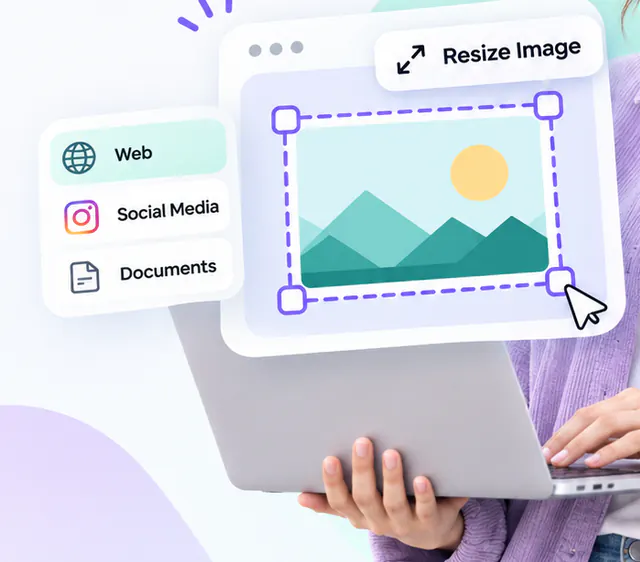
Resize up to 50 images to one size at once, with presets for web and social sizes.
- Runs in your browser
- No upload step
- Free, no watermark
Quick answer
Resize many images at once for free in your browser: drop up to 50 files, choose a maximum width, a fixed size or a percentage, pick fit, crop or pad, press Resize all and download a ZIP. Presets cover common web and social sizes. Nothing is uploaded and no signup is required.
About this tool
Apply one resize rule to a whole set of images: a maximum width for a blog, a fixed square for product listings or a percentage reduction for photos from a camera. Each file is processed in a Web Worker with its own progress indicator, and the results download as a ZIP.
Because images in a batch rarely share an aspect ratio, the mode setting matters: fit keeps every image undistorted inside the limit, crop produces identical dimensions, and pad produces identical dimensions without cutting anything off.
How to use Batch Image Resizer
- Add up to 50 images.
- Pick a preset or enter width/height/percent and a mode.
- Choose the output format (or keep the original per file).
- Press Resize all, retry any failures, and download the ZIP.
Limitations and notes
- Per-image crop positioning is not available; the gravity setting applies to every image.
- Very large batches are constrained by device memory; the tool processes a few files at a time.
- Animated images lose animation; metadata is removed.
- Parallel workers are limited to four to keep memory under control on mobile devices.
Why these limits exist, and how to work around them, is covered in Image sizes for the web.
Frequently asked questions
Can I keep the original format for each file?
Yes. Leave the output format on “Same as source” and each PNG stays PNG, each JPG stays JPG and each WebP stays WebP. GIF and BMP sources are written as PNG because HelpMeJPG does not encode GIF or BMP.
Will small images be enlarged to the target size?
Only if you enable upscaling. By default images smaller than the target are left at their original size.
Is my image uploaded?
No. Resizing and cropping are done in your browser with the Canvas API. Nothing is sent to a server.
Share this tool
Found it useful? Pass the link on – it is free for everyone.
Embed badge

<a href="https://helpmejpg.com/tools/batch-image-resizer" title="Free Batch Image Resizer – HelpMeJPG"><img src="https://helpmejpg.com/brand/logo-lockup.svg" alt="Free Batch Image Resizer – HelpMeJPG" width="160" height="40" loading="lazy"></a>